.png?width=783&height=479&name=BBE%20Logo%20Teal%20Background%20(1).png "Bykov-Brett Logo")
How to Switch From ChatGPT to Claude and Keep Your Memory
 Jamie Bykov-Brett
·
25 June 2026
·
12 min read
Jamie Bykov-Brett
·
25 June 2026
·
12 min read
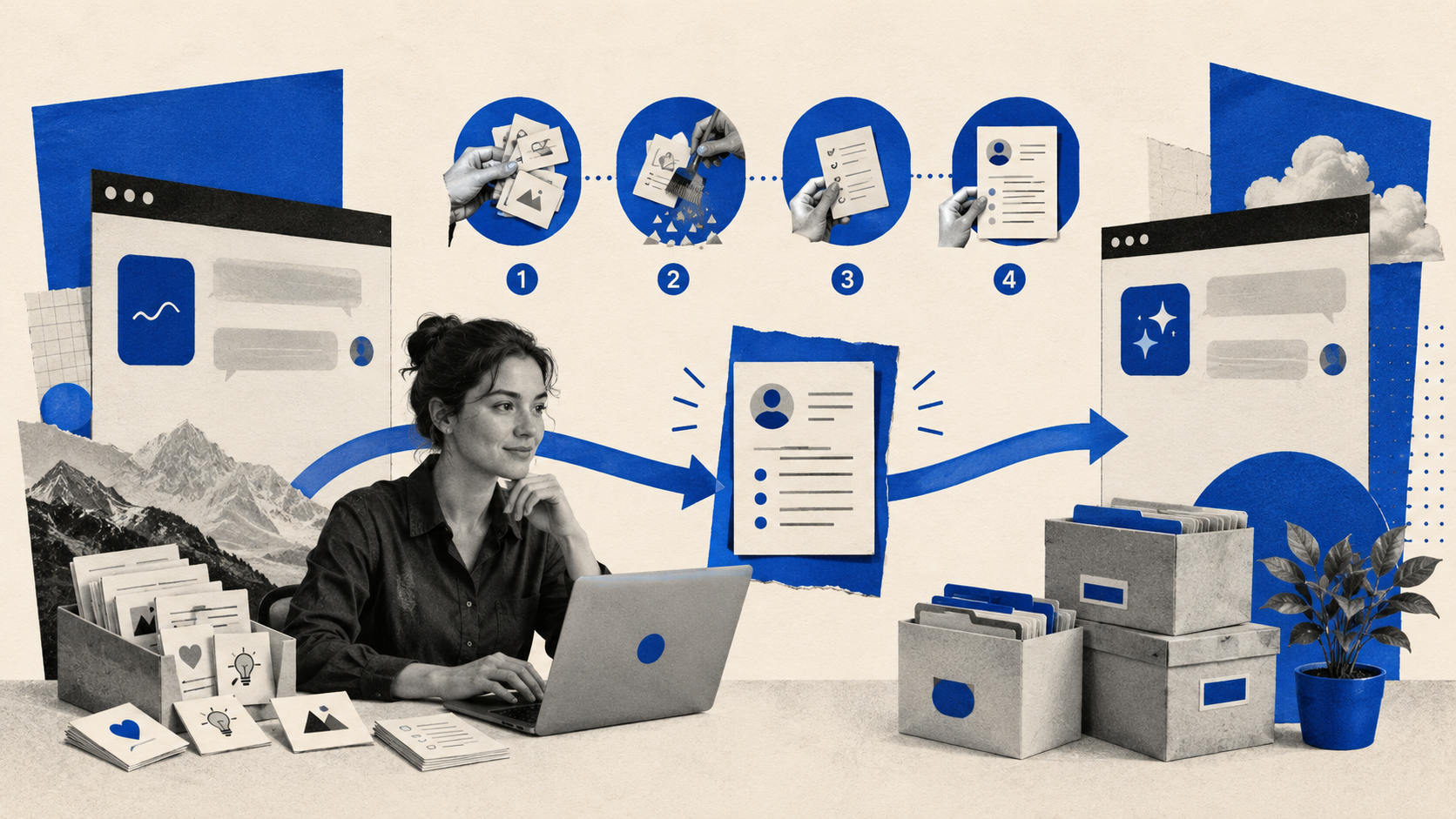
If you have spent months training ChatGPT to understand how you work, the thing holding you back from trying Claude is usually not the chat box. It is the memory. All those preferences, project details, and "remember that I always want it this way" notes feel like they live inside ChatGPT and nowhere else.
The good news: you can bring most of that across in about ten minutes, and Claude now has an official tool built for exactly this. This guide walks you through reviewing what ChatGPT actually remembers, cleaning it up so you do not drag stale junk into your new setup, and importing a tidy version into Claude.
This is for anyone with a normal ChatGPT account (Free, Plus, or Pro) who wants to switch to Claude, or simply run both and keep their context in sync. You do not need to be technical. If you can copy and paste, you can do this.
Prerequisites
A ChatGPT account you have been using (Free, Plus, or Pro). Business and Enterprise workspaces handle data exports differently.
A Claude account. Memory and the import tool are available on the free plan, so you can set this up before paying for anything.
About 10 to 15 minutes.
No cost, no extensions, no third-party tools required.
Step 1: Understand what you are actually moving
Before touching any buttons, it helps to know there are two different things people mean by "my ChatGPT data," because they move in completely different ways.
The first is your memory — the facts and preferences ChatGPT has saved about you. As of 2026, ChatGPT keeps this in two layers: an explicit, editable list called saved memories, and a looser background recall of your past chats. You can see and control the explicit list in Settings > Personalization > Manage memories. This is the part worth bringing to Claude.
The second is your full chat history — every conversation you have ever had. This is useful as a personal backup, but you almost never want to dump all of it into a new assistant. The signal is in your preferences, not in three thousand old messages.
For most people, the goal is: bring the memory and preferences, leave the raw history behind (or keep it as a private backup). That is the approach this guide takes.
Step 2: Review and clean your ChatGPT memories
This is the step everyone skips, and it is the one that makes the biggest difference. ChatGPT's memory is cumulative, so it often holds things that are out of date or were never quite right: a city you left two years ago, a project that wrapped, a one-off request it mistook for a standing preference.
In ChatGPT, open Settings > Personalization > Manage memories. You will see each saved memory as its own row with the date it was added. Read down the list and delete anything that is wrong, stale, or irrelevant using the trash icon on each row.
You should now have a memory list that genuinely reflects how you work today. Cleaning here is far easier than cleaning later, because you are working from ChatGPT's own structured list rather than a wall of exported text.
Step 3 (optional): Export your full history as a backup
If you want a personal archive of everything before you switch, take a full export. This is optional and separate from the memory import.
In ChatGPT, go to Settings > Data controls > Export data, then select Export and confirm. ChatGPT emails you a download link when the file is ready. This can arrive within minutes, though OpenAI says it can take up to a few days. The link expires 24 hours after it arrives, so download it promptly while signed in to the same account.
The ZIP file contains conversations.json (your full message history with timestamps) and chat.html (a browser-readable version of the same thing). One important catch: this export does not include your saved memories or, reliably, your custom instructions. That is exactly why Step 2 and the import in Step 5 matter. The export is a history backup, not a memory transfer.
Step 4: Generate a clean summary of what ChatGPT knows about you
Now you turn ChatGPT's memory into something portable. Open a fresh ChatGPT chat (a new one, so old context does not muddy the output) and ask it to summarise everything it knows about you in a structured, condensed form.
You can use a prompt like this:
Based on everything you know about me from your saved memories and our
past conversations, write a single structured summary I can give to another
AI assistant so it understands how to work with me.

Organise it under clear headings: About me, How I like to communicate,
My ongoing projects, My tools and preferences, and Things to avoid.

Be concise. Merge anything that repeats, drop anything trivial or one-off,
and leave out anything sensitive I would not want stored. Use short bullet
points, not paragraphs.
ChatGPT will produce a tidy, deduplicated profile. Because you asked it to merge repeats and drop trivia, this is also where the real condensing happens: you are getting a clean signal instead of a raw memory dump.
You should now have a short, readable summary on screen. Read it once before moving on.
Step 5: Condense and sanity-check the summary
Do not paste blindly. Take thirty seconds to edit the summary ChatGPT gave you:
Delete any line that is no longer true.
Cut anything sensitive you would rather not have stored in another system (financial details, health notes, anything private).
Merge near-duplicates into one clear line.
Keep it tight. A focused half-page beats a sprawling two pages. Memory works best when it holds your durable preferences, not every passing detail.
Think of it as writing a handover note for a new colleague. You would give them the things that genuinely help them work with you, not a transcript of everything you have ever said.
Step 6: Import the summary into Claude
In Claude, open Settings > Capabilities > Memory and choose Start Import (you can also go straight there via claude.ai/settings/capabilities). Claude will hand you a short prompt of its own and explain the flow, which is the same idea you just did manually: it is designed to pull your context out of another assistant in one chat.
Paste your cleaned-up summary from Step 5 into Claude's import box and confirm. Claude processes it and stores the preferences and context so they apply across your future conversations automatically.
A few things worth knowing:
The import tool is available on all Claude plans, including free, though it was still labelled experimental as of early 2026.
It transfers your memory and preferences, not your full chat history. (That is fine, your history backup from Step 3 lives separately.)
Each import adds to your existing memory rather than overwriting it, so you can repeat this later to layer in context from other assistants too.
Claude updates its memory within about 24 hours of an import, though it is often much faster.
You should now see your imported context reflected in Claude's memory settings.
Step 7: Set up Projects for your ongoing work
Memory handles the global "who you are" context. For specific, recurring work, Claude's Projects are the better home. A Project is a workspace that groups related chats, files, and its own custom instructions, and it keeps its own separate memory so context from one project does not bleed into another.
For each major thing you work on, create a Project, write a few lines of custom instructions describing how you want Claude to behave there, and upload any reference files. This mirrors how you might have used custom instructions in ChatGPT, but with cleaner separation between different areas of your life or work.
One pleasant difference to expect: when Claude uses something it remembers, it tends to say so out loud, rather than quietly folding it in the way ChatGPT does. If you would rather it remembered less, you can review or switch off memory in the same settings area, and you can control training data use under Settings > Privacy.
Troubleshooting
ChatGPT's summary is missing obvious things. Memory only contains what ChatGPT chose to save. If something important is missing, tell it directly in that chat ("you also know that I..."), then ask it to regenerate the summary.
The export email never arrives. Check spam, confirm you requested it on the right account, and remember the link expires 24 hours after delivery. If you missed the window, just request a new export. The export is only needed if you want a history backup; it is not required for the memory import.
Claude does not seem to use the imported memory yet. Give it up to 24 hours, and check that memory is switched on in Settings > Capabilities > Memory. You can open that screen to confirm your imported context actually landed.
The import pulled in something wrong or outdated. Open Claude's memory settings and edit or remove the entry directly. This is why the cleanup in Steps 2 and 5 matters, but you can always fix it after the fact.
You are on a Business or Enterprise account. Data export and memory controls can differ on managed workspaces. Check with your workspace admin, or do the Step 4 summary approach, which works regardless of account type because it only uses a normal chat.
Wrapping up
Switching assistants does not mean starting from scratch. The whole job comes down to three moves: clean up what ChatGPT remembers, ask it to write you a tidy summary, and import that into Claude. The export in Step 3 is just an optional safety net for your old conversations.
The bigger lesson is that your context is an asset worth curating, not hoarding. Whichever assistant you land on, a short and accurate memory will serve you far better than a giant pile of half-true facts. Spend the ten minutes to condense it well, and Claude will feel like it has known you for months from day one.
If getting your team to actually adopt these tools well (rather than just signing up for them) is something you are working on, you can see the kind of work I do over at Bykov-Brett Enterprises.
Frequently asked questions
Will I lose my ChatGPT chat history if I switch to Claude?
No. Moving to Claude does not touch your ChatGPT account, and nothing is deleted unless you delete it yourself. If you want a personal copy of every conversation, take the full export in Step 3. Just remember that the memory import in Step 6 brings across your preferences and context, not the raw transcripts.
Does ChatGPT's data export include my saved memories?
No, and this catches a lot of people out. The official export gives you your conversation history as conversations.json and chat.html, but your saved memories and custom instructions are stored separately and are not reliably included. That is exactly why the better route is to ask ChatGPT to summarise what it knows about you (Step 4) and import that summary into Claude.
Is Claude's memory import free?
Yes. Memory and the import tool are available on Claude's free plan, so you can set all of this up before deciding whether to pay for anything. The import was still labelled experimental as of early 2026, so expect small rough edges.
Can I keep using both ChatGPT and Claude?
Absolutely. This is not a one-way door. Plenty of people run both and use the summary-and-import method to keep their context roughly in sync. Each import in Claude adds to your existing memory rather than overwriting it, so you can re-import an updated summary whenever your preferences change.
How long until Claude actually uses the imported memory?
Usually within minutes, though Claude says it can take up to 24 hours to fully process an import. If it does not seem to be using your context, open Settings > Capabilities > Memory and check that memory is switched on and that your imported entries actually landed.
What is the difference between Claude's memory and Projects?
Memory is your global context: who you are and how you like to work, applied everywhere. A Project is a dedicated workspace for one area of work, with its own instructions, files, and separate memory. Use memory for the general stuff and Projects for specific, recurring work you want kept apart.
Is it safe to import personal information this way?
Treat the summary as something you control. Before pasting it into Claude, read it and cut anything sensitive you would rather not store, such as financial or health details. On consumer plans your data can be used to improve the model by default, so if you would prefer it was not, you can turn that off under Settings > Privacy.
Jamie Bykov-Brett
Listed as one of Engatica's World's Top 200 Business and Technology Innovators, Jamie is an AI and automation consultant who helps organisations move from curiosity to confident daily use. As founder of Bykov-Brett Enterprises and co-founder of the Executive AI Institute, he designs AI upskilling programmes that have delivered 86% daily adoption rates and a 9.7/10 NPS. His work sits at the intersection of technology implementation and human development, with a focus on responsible governance, practical tooling, and making AI accessible to every level of an organisation.
Get AI Insights Delivered
Practical perspectives on AI adoption and the future of work. No spam.
.png)