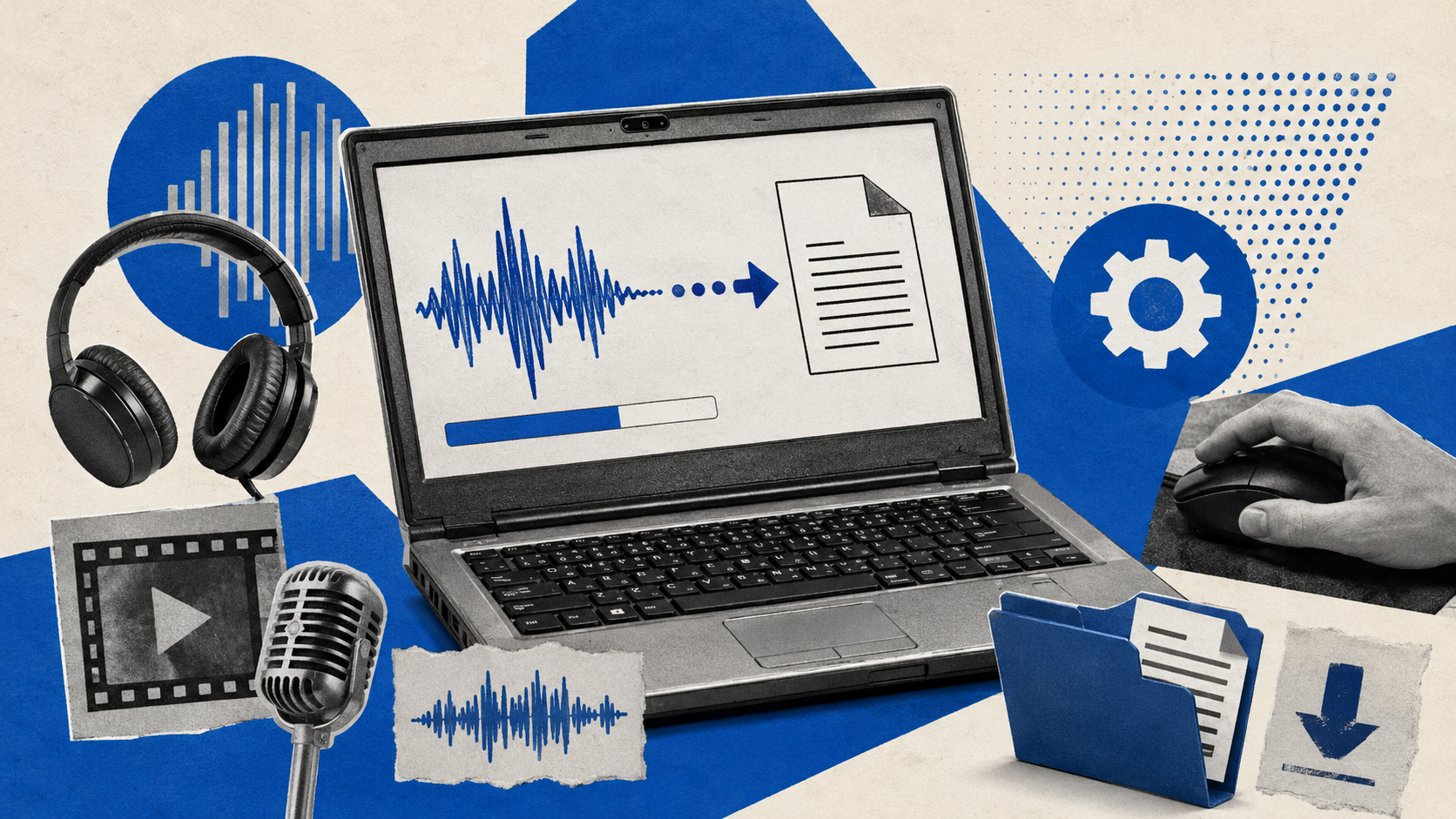
You do not need a new computer, a subscription, or any technical know-how to turn recordings into written text. With one free app, an eight-year-old Windows laptop can transcribe interviews, voice notes, meetings, and video, all without sending a single file to the internet.
This guide is written for someone who has never done this before. There is no jargon and no command line. If you can install an app from the Microsoft Store and drag a file onto a window, you can do this.
It uses a free, open-source app called Buzz, which is built on Whisper, the same speech-to-text technology that powers a lot of paid transcription tools. Everything runs on your own machine, so your audio stays private.
Who this is for and what you will need
This is aimed at complete beginners on an older Windows PC. A machine from around 2017 with 8GB of memory and no fancy graphics card is perfectly capable.
Before you start, you will need:
A Windows computer (older and modest is fine).
An internet connection for the one-time setup only.
The audio or video file you want to turn into text.
About ten minutes to get set up, plus processing time for your file.
One honest expectation to set first: on an older computer the text does not appear instantly. The machine has to listen to the whole recording and type it out, so a ten-minute clip might take a few minutes to finish. That is completely normal. It works well, it just is not instant.
Step 1: Install the Buzz app
Click the Start button in the bottom-left corner of the screen, type Microsoft Store, and open it.
Click the search box at the top of the Store and type Buzz transcription.
Find the app called Buzz in the results and click it.
Click Get, or Install, and wait for it to finish.
That is the whole installation. There is nothing to set up or configure.
Step 2: Open Buzz and add your file
Open Buzz from the Start menu by typing Buzz and pressing Enter.
Look for the button to start a new transcription. It is usually labelled New Transcription or shown as a plus sign.
Choose Import File and select the audio or video file you want to convert.
You should now see a small settings window appear before anything starts.
Step 3: Choose the right settings
Only two settings matter. You can leave everything else as it is.
Model: choose Small (English). This is the best balance of accuracy and speed for an older machine. The very first time you pick it, Buzz downloads the model, which takes a minute or two. After that it is saved and reused, so you only wait once.
Language: set this to English, or leave it on automatic if your audio is in another language.
Then click Run, or Start, and let it work. You will see it processing.
Step 4: Read and save your text
When it finishes, double-click the completed item in the list to open the transcript.
To keep the text, use the Export or Save option.
Choose a format. Pick TXT for plain text, or SRT if you want subtitles to add to a video.
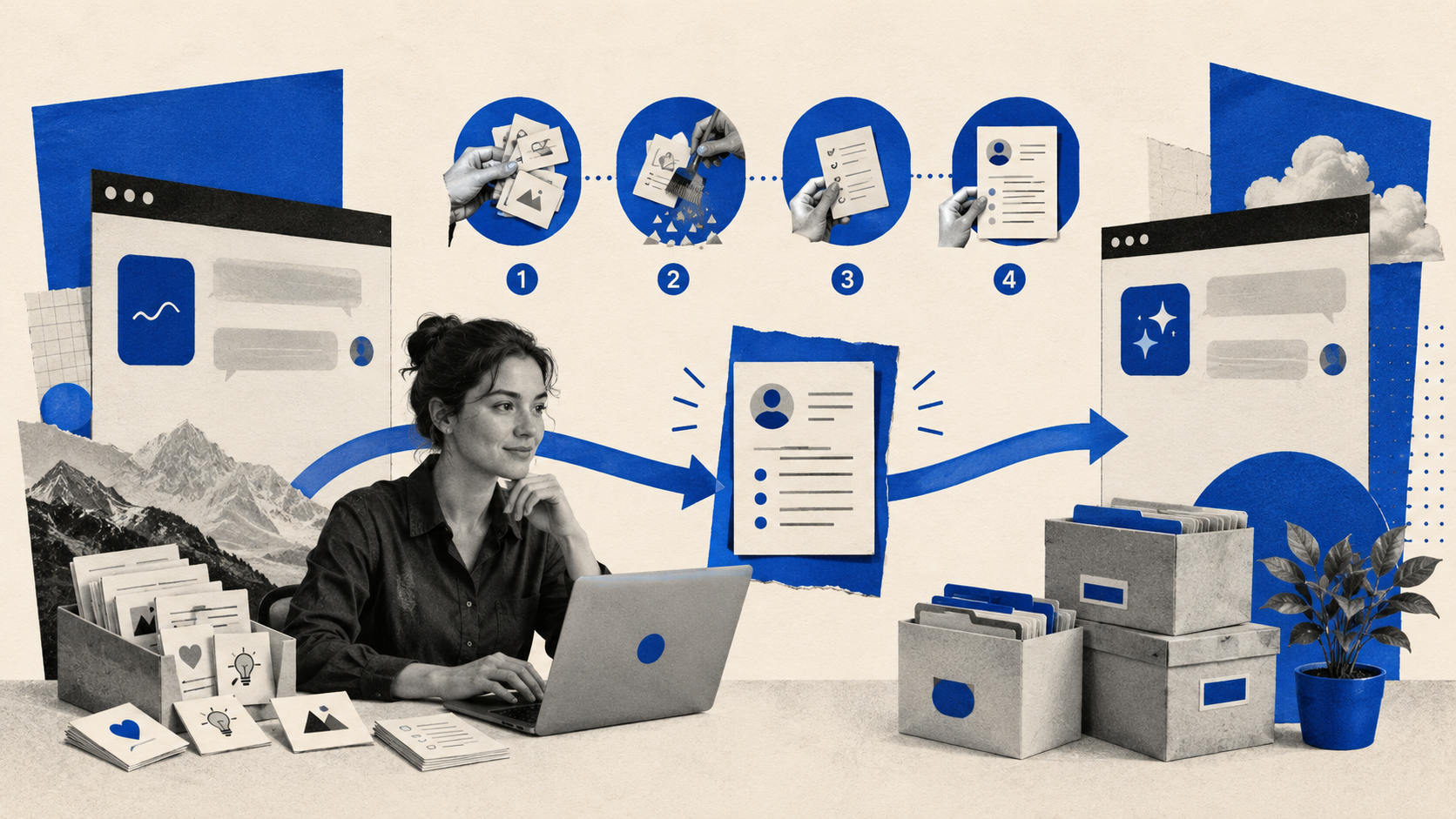
That is the full process. Import a file, pick the model, run it, export the text.
If it feels too slow
If the Small model takes longer than you would like, do exactly the same steps but choose the Base (English) model instead. It is faster and still gives good results. The trade-off is slightly less accuracy on difficult or noisy audio.
Avoid the Medium and Large models on an older machine. They are more accurate but need far more memory and will run very slowly. For most everyday recordings, Small is the sweet spot.
A simple speed tip: close other heavy programs while Buzz is working, especially web browsers with lots of tabs open. That frees up the computer to focus on the transcription.
Troubleshooting
It looks frozen or stuck. It is almost certainly still working, especially on a longer file. Give it a few minutes and close other apps to speed it up.
The model will not download. Check your internet connection and try again. The download only needs to happen once.
The text has small mistakes. This is normal for any speech-to-text tool. Clearer audio gives better results, and the Small model is more accurate than Base if you need the extra precision.
It runs out of memory or crawls. Switch to the Base (English) model and close every other program while it runs.
In short
Install Buzz from the Microsoft Store, open it, import your file, choose the Small (English) model, and click Run. When it finishes, export your text. A modest old laptop can do genuinely useful transcription for free, with your recordings never leaving the machine.
If you like finding AI tools that actually earn their place, with no hype and no jargon, that is the whole point of what we do. You can explore more free, practical AI resources and assessments at bykovbrett.net/resources.
.png?width=783&height=479&name=BBE%20Logo%20Teal%20Background%20(1).png "Bykov-Brett Logo")
 Jamie Bykov-Brett
·
21 June 2026
·
5 min read
Jamie Bykov-Brett
·
21 June 2026
·
5 min read
.png)